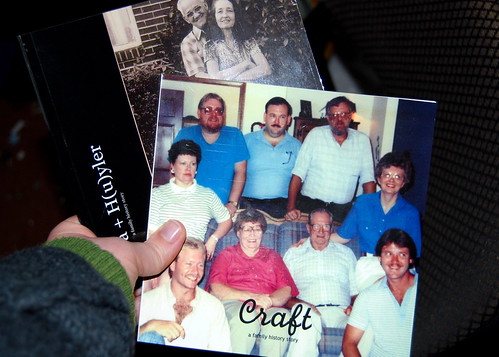
I've tried a few different options over the last year or so. Each one is unique, but also like the others. I'll start with the one that I use the most: Blurb.com.
Unlike many other photo book creating sites, Blurb provides a downloaded software program that allows you to create your book off-line (available for Mac & PC). Start by setting up an account, then download the BookSmart program. The program is easy to use, helping you set up your book with step by step assistance.
1. Choose your book size. One reason that I love Blurb is their prices. A 7x7 paperback book is only $12.95 for 40 pages! There are a variety of other sizes as well, and their website details the options.
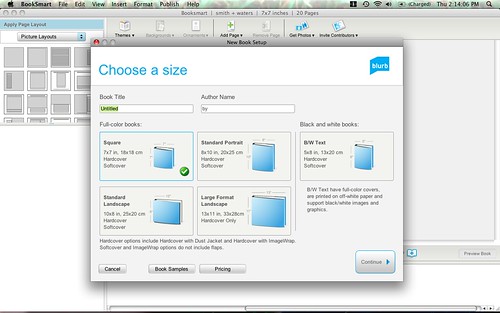
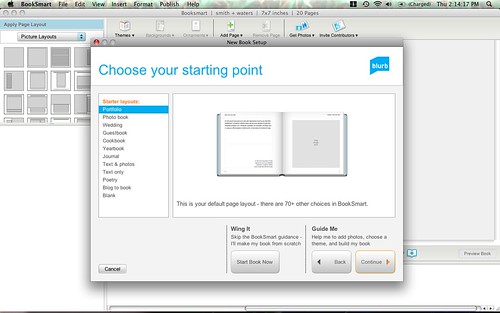
2. Choose a book type. You can choose from photo books, text books, cookbooks, journals, yearbooks and more. But this is just a starting point! Once you create your book, you can choose pages from any style to add you your book.
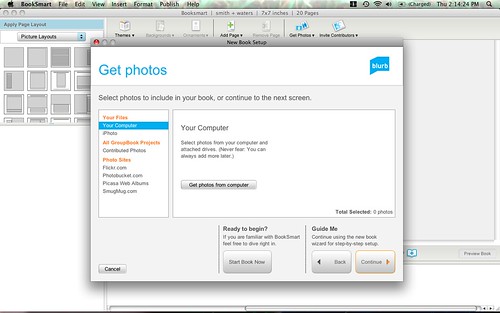
3. Import your photos. Before you start your book, you can import photos from your computer, iphoto, photobucket, flickr, and more. You can also do this later in your book creating process.
4. Design your book. There are a lot of different things going on once you've created your book. Here's what the screen looks like:

The largest part of your screen is where you create your page. Below, is a page by page navigation of your book. Just click on a page to view it. You can view single or double pages and you can zoom in. At the top of the page is your tool bar, where you can adjust fonts, backgrounds and more.
On the left of the screen are your "elements." At the top left, you choose what type of page you'd like: photos, text, cookbook, journal, etc. Below that are your photos. Just click and drag the photo to the page. Here you can also upload more photos.
Once you have a page how you'd like it, run the spell check and click "Preview Book" When the book is done, it will be uploaded to blurb.com (it can take a little while). Once uploaded, you can preview the first 15 pages before purchasing. You can make the book available for others to see an purchase, which could be very a very handy feature for sharing the book with your family.
Blurb ships all around the world and will give you a price estimate for your order. Their prices seem on par with other services. The book arrive in good time and are well made. The pages are glossy and I've never had a problem with their printing. What you create is what you will receive.
There are two things that I don't like about blurb.com. First, you're using a template for every page, which keeps you locked in. To get around this: If you're handy with photoshop, you can always create your pages in that program and then load them into blurb on a "full bleed" page. Another issue I have is that these books are shipped with an "easy peel" sticker on the back. Ha! These are not easy to peel. I contacted blurb about these stickers and they recommend removing them with goo-gone or nail polish remover. I recommended that they just not put this sticker on the book.
Regardless of these two issues, I highly recommend blurb as economical, well made and easy to create.